
Windows
Manages Windows itself from inside WSL, through the interop bridge (powershell.exe). On a WSL machine the ubuntu and wsl roles cover the Linux half; this role covers the Windows half: winget packages, user environment variables, registry settings, virtual desktops, and workspace launchers that start a preconfigured set of apps on their desktops and monitors with one shortcut.
Almost everything runs unelevated in the user's own scope (user-scope installs, HKCU registry, per-user PowerShell modules), touching nothing machine-wide. Two opt-in performance tweaks are the exception: windows_power_plan switches the machine-wide active power plan (no elevation), and windows_defender_exclusions elevates through a UAC prompt (see Performance tweaks). On a non-WSL host the whole role skips cleanly, so it is safe in a shared role list.
List it after wsl in your playbook.yaml: the interop probes use wslvar from the wslu package that role installs.
What it does
- Installs Windows apps via
winget(windows_packages), upgraded underdotpro apply --upgrade - Sets Windows user environment variables (
windows_env) - Applies the registry values you declare (
windows_registry), the Windows counterpart ofmacos_defaults - Applies opt-in performance tweaks: Defender exclusions (
windows_defender_exclusions) and the active power plan (windows_power_plan) - Converges named virtual desktops (
windows_virtual_desktops) via the VirtualDesktop PowerShell module - Routes app deep links and web links to the isolated app on your current virtual desktop (
windows_virtual_desktops_router), see Virtual Desktop Router - Shows the current virtual desktop's name as an always-on-top overlay you can click to open Task View (
windows_virtual_desktops_overlay), see Virtual Desktop Overlay - Deploys the Windows Workspaces launcher (
windows_workspaces): one config-driven PowerShell script in%USERPROFILE%\bin\, a hotkey-capable Start Menu shortcut per workspace, and a "Windows Workspaces" shortcut that opens a Select a Workspace picker - Makes the
bashrole's attention toasts clickable (windows_terminal_focus): clicking a toast brings up the Windows Terminal window and tab the pinging session lives in, see Terminal focus
Variables
| Variable | Default | Description |
|---|---|---|
windows_packages | [] | winget package ids to install (winget search <name>) |
windows_upgrade_all | dotpro_upgrade (or false) | Upgrade all winget packages (on under dotpro apply --upgrade) |
windows_env | {} | Windows user environment variables to set |
windows_registry | show file extensions | Registry values to apply: {path, name, type, data} |
windows_defender_exclusions | {} | Defender exclusions ({paths, processes}); opt-in, elevates through a UAC prompt |
windows_power_plan | "" | Active power plan: high, balanced, powersaver, a scheme GUID, or "" to leave it |
windows_interactive | auto | Whether a run may raise the Defender UAC prompt; auto from DOTPRO_NONINTERACTIVE |
windows_virtual_desktops | {} | Virtual desktops to converge, keyed by desktop: {title, number, wallpaper, hotkey, on_demand} |
windows_workspaces | [] | Workspace launchers, see below |
windows_workspaces_window_timeout | 15 | Seconds a launcher waits for an app's window before moving on |
windows_workspaces_keys_delay | 1500 | Default milliseconds before an app's keys are sent (per-app keys_delay overrides) |
windows_workspaces_selector | true | Deploy the "Windows Workspaces" selector shortcut (opens the Select a Workspace picker); on whenever a workspace exists |
windows_workspaces_selector_title | Windows Workspaces | The selector shortcut's label (its .lnk filename) |
windows_workspaces_selector_hotkey | "" | Optional global hotkey that opens the picker |
windows_workspaces_selector_icon | "" | Selector shortcut icon (.ico/.exe/.dll, optionally path,index); default is the stock monitor glyph |
windows_terminal_focus | true | Register the Terminal focus handler that makes attention toasts clickable |
windows_virtual_desktops_router | false | Deploy the Virtual Desktop Router (routes app deep links and web links to the isolated app on your current virtual desktop) |
windows_virtual_desktops_overlay | false | Deploy the Virtual Desktop Overlay (an always-on-top, draggable label of the desktop you're on) |
windows_virtual_desktops_overlay_position | bottom-right | Overlay corner: top-left, top-right, bottom-left, or bottom-right |
windows_virtual_desktops_overlay_opacity | 0.8 | Background opacity, 0.0 to 1.0 (the label text stays opaque) |
windows_virtual_desktops_overlay_font_size | 10 | Overlay label font size, in points |
windows_virtual_desktops_overlay_all_screens | true | Show one label per monitor; false for the primary only |
Packages
windows_packages takes exact winget ids and installs each missing one with winget install --silent. Installs run in the user's context: a package whose installer needs elevation pops a UAC prompt on the Windows side, so keep the list to apps that install per user if you want fully unattended applies.
windows_packages:          # default: []
  - Microsoft.WindowsTerminal
  - Microsoft.PowerToys
  - SlackTechnologies.Slack
Under dotpro apply --upgrade the role lists the pending winget upgrades and applies each one individually, the counterpart of the macos role's brew upgrade: the play output names every app it upgrades, and the version changes are recorded in the upgrade history shown by versions-history (see the bash role). dotpro plan --upgrade runs only the read-only listing, showing what an apply would upgrade without changing anything.
A package that installs machine-wide (Microsoft.WSL, for example) cannot be upgraded from the role's unelevated user context; the apply reports it and moves on instead of failing, leaving the upgrade to an elevated winget upgrade on the Windows side (for WSL itself, wsl --update from an admin terminal).
Some packages appear in winget's upgrade list with a version none of its installers can apply ("No applicable upgrade found"), typically an app installed from the Microsoft Store: that copy is per-user, and the winget source only carries machine-scope installers, so winget rejects them and the source column may still read winget. The apply reports those too and moves on; the update sits under Library > Get updates in the Store app (the product page only offers Open once the app is installed). A Win32 app the Store installed (Docker Desktop) disables its own updater and defers to the Store as well.
An upgrade can also install but only take effect once the running copy exits: winget prints "Restart the application to complete the upgrade" and Windows keeps the old version registered until then. App Installer, the package winget itself ships in, is the usual case: a WindowsPackageManagerServer process left running by a WinGet COM client holds it at the old version. The apply reports those packages and leaves them out of the upgrade history; close the app, stop WindowsPackageManagerServer, or restart Windows, and the new version registers.
Environment variables
windows_env writes user-scope Windows environment variables (the Windows-native side; the wsl role's WSLENV handles bridging variables between the two worlds). Only declared variables are touched, and already-running apps need a restart to see changes:
windows_env:               # default: {}
  RIPGREP_CONFIG_PATH: '%USERPROFILE%\.ripgreprc'
Registry (defaults)
windows_registry is the counterpart of macos_defaults: a list of {path, name, type, data} entries rather than a deep-merged dict, so the role writes exactly the values you declare and leaves every other key untouched ("settings, not files"). Redeclare an entry in your own list to change it, or trim and extend the list. path uses PowerShell drive syntax and type is a PowerShell property type (String, ExpandString, DWord, QWord, MultiString, Binary). The shipped default:
| Path | Name | Value | Effect |
|---|---|---|---|
HKCU:\...\Explorer\Advanced | HideFileExt | 0 | Explorer shows file extensions |
windows_registry:
  - { path: 'HKCU:\Software\Microsoft\Windows\CurrentVersion\Explorer\Advanced', name: HideFileExt, type: DWord, data: 0 }
  - { path: 'HKCU:\Software\Microsoft\Windows\CurrentVersion\Themes\Personalize', name: AppsUseLightTheme, type: DWord, data: 0 }
Some Explorer and theme values only take effect after signing out and back in or restarting Explorer; the role sets the value and leaves the restart to you.
Virtual desktops
windows_virtual_desktops declares the desktops you want: a mapping keyed by desktop, or a list mixing bare names and the same mappings with an explicit name (so - Main and - name: main both work). The keyed form deep-merges across group_vars/host_vars (a host overrides one desktop's wallpaper without redeclaring the set, and drops an inherited entry with key: false); the key is how workspaces reference a desktop. The role creates missing desktops and renames until the declared desktops carry their titles; desktops beyond the declared set are left alone, and nothing is ever removed:
windows_virtual_desktops:  # default: {}
  main: {}
  chat:
    title: Team Chat       # default: the capped key ("Chat")
    wallpaper: '%USERPROFILE%\Pictures\Wallpapers\chat.jpg'
    hotkey: CTRL+ALT+9
  music:
    wallpaper: '%USERPROFILE%\Pictures\Wallpapers\music.jpg'
    on_demand: true
Per-desktop settings, all optional:
titlethe display name in Task View, defaulting to the key with-/_as spaces and each word's first letter capitalized (client-abecomesClient A; existing capitals are preserved).numberthe desktop's 1-based position, ordering the convergence, defaulting to declaration order, so you only set it when overriding a single entry fromhost_varsor keeping anon_demandentry mid-list.wallpapera per-desktop background (Windows 11 only;%VAR%references are expanded, and the value is only written when it differs from the current one).hotkeya switch shortcut: Windows has no native jump-to-desktop-N hotkey, so the role deploys a Start Menu shortcut named for the desktop's title whose global hotkey switches straight to the desktop, creating it first (title and wallpaper included) if it doesn't exist yet.on_demand: truekeeps an entry config-only: the apply doesn't create it, and the first workspace launch or switch hotkey that references the desktop creates it with its declared title and wallpaper.
A switch hotkey only changes desktops; starting apps there is what workspaces are for (a workspace hotkey means "bring this up", a desktop hotkey means "take me there"). Positional ordering only holds for the eagerly created entries (an on-demand desktop lands after whatever exists at creation time), so declare the on-demand ones last.
Windows has no supported API for this, so the role uses the VirtualDesktop PowerShell module (installed per user from the PowerShell Gallery when this list or windows_workspaces is non-empty, updated under dotpro apply --upgrade).
The virtual desktop API is undocumented
The module wraps Windows COM interfaces Microsoft doesn't document, so a Windows feature update can break desktop management until the module catches up (it has, after every Windows release since 2016). The rest of the role is unaffected.
Virtual Desktop Router
The router works at the virtual-desktop layer: it routes a clicked link to the app instance already open on the desktop you're on. It routes from live window state and keeps no configuration, with one exception: an opt-in per-host memory you can enable from the picker (see below).
The OS routes every link to a single handler: a protocol deep link (slack://... from a sign-in) or a web link (https://... from a chat message) lands in the default instance, not the isolated one for the client you're working on. For browsers this is Firefox's own behavior: an external link goes to the default profile regardless of which one you were using (bug 1553815, since Firefox 67), and while a 2025 fix keeps it on your current virtual desktop, it's still that default profile in a new window. Set windows_virtual_desktops_router: true and the role deploys the Virtual Desktop Router to fix that: instead of one global default, it opens each link in the isolated instance on the virtual desktop you're on.
Resolution is live: for each link it finds the app that handles the scheme (a browser for http/https; slack.exe for slack://) on the virtual desktop you're on, and forwards the link to that running instance, echoing the instance's own profile flag off its command line verbatim (-P name, --profile <dir>, or --user-data-dir=<dir>). It never launches or reconstructs a profile, so a built-in Firefox profile (-P or a hand-made one) and an isolated --profile workdir both route the same way, and the router stays agnostic to how you set your profiles up. The order:
- the foreground window, when its process handles the scheme;
- any window handling the scheme on the current virtual desktop, found live via the documented
IVirtualDesktopManagerAPI (no VirtualDesktop module needed), targeted by the profile on its own command line; - a remembered choice for the link's host: the router's only stored state, set by ticking a box in the picker (below) and consulted only after the two live checks above, so live context always wins;
- a "Choose a desktop" picker of the other desktops that have a handler open.
Each tile in the picker shows the desktop's name and wallpaper (read live from the registry) and the browser on it, plus its switch hotkey as a corner badge (accent on hover) when the desktop has one, discovered live from the deployed switch shortcuts so the router stays config-free, plus a "you are here" tile for the current desktop, slotted into its place in the Task View order: its wallpaper like any tile, its name followed by a green dot, and no app icon since nothing is open on it. For a web link that tile opens the link here in a freshly launched browser; for an app scheme it's dimmed and inert. Picking a handler tile forwards the link there, switching you to that desktop. Tick "Always open ‹host› links on the desktop I choose" to remember that pick and skip the picker for that host next time (web links only). A lone candidate skips the prompt; a web link with nothing open anywhere falls back to a freshly launched browser, so a link is never dropped.
Because it reads live windows, the router opens whatever browser/Slack is actually on your desktop (including ones you launched by hand or your plain default profile) and reads nothing from the workspace config (the picker's desktop names and wallpapers come from the registry, not the role); the only state it keeps is the opt-in per-host memory. The flip side: a browser that isn't already open on any desktop isn't launched by steps 1 and 2 (that's the picker's job), and a client's instance parked on a different desktop isn't found by the desktop scan. The picker is how you reach it. An instance's scheme is its executable basename (slack.exe → slack://); when enabled the router registers for those app deep-link schemes. It registers for http/https only when a workspace runs a browser with an isolation flag (--user-data-dir, --profile, or -P). A plain default-profile browser already opens an external link on your current virtual desktop by itself (modern Firefox and Chromium both do this), so the router leaves web links to it. But an isolated profile is not the default one external links fall back to, so the moment a browser runs with its own profile flag, the router claims web links too and steers each to the isolated instance on the desktop you're on. A virtual desktop and a profile are never bound in config; the only link between them is the instance you launched there, which is exactly what the live scan reads.
One manual step remains, once per scheme: under Settings > Apps > Default apps, search for "Virtual Desktop Router" and select it for that link type. Setting it there writes the protected UserChoice through the supported path, which is how the router outranks even a Store package's manifest claim on the scheme. The router runs windowless, so the silent paths never flash a window. Everything it persists lives under one per-user directory, %LOCALAPPDATA%\dotfilespro: the compiled interop cache, the remembered-host map (virtualdesktoprouter.json; delete it to forget every remembered host), and the decision log (virtualdesktoprouter.log), where every routing decision and failure is recorded.
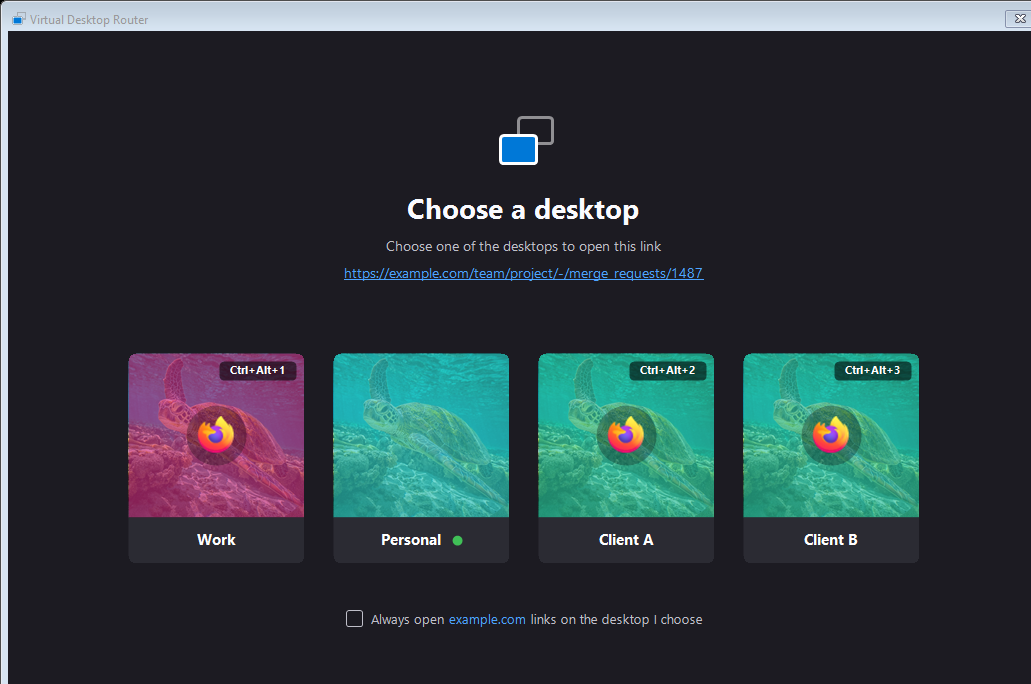
A sign-in still lands on the right Slack automatically: the deep link resolves to the Slack open on the desktop you're signing in from. Sessions persist per profile, so this is once per client.
Virtual Desktop Overlay
Windows only shows a virtual desktop's name in Task View or when you hover the taskbar's Task View button, so after a Win+Ctrl+←/→ switch between desktops with similar windows, it's easy to lose track of which one you're on. Set windows_virtual_desktops_overlay: true and the role deploys a small always-on-top label that names the desktop you're on, in a corner of the primary monitor. It carries the Task View icon and clicking it opens Task View (the taskbar button next to Start), without pulling focus off whatever you were in. When the pill covers something you need to see, drag it anywhere: it stays where you drop it and snaps back to its corner on your next desktop switch (renames and theme changes leave it parked).

It reads the current desktop and its name live from the registry (the same keys the Virtual Desktop Router and desktop convergence use), so it needs no VirtualDesktop module, and it's event-driven: a RegNotifyChangeKeyValue watch wakes it the instant you switch or rename a desktop (and a second watch repaints it when you flip the Windows light/dark theme), so it polls nothing and sits idle in between. An unnamed desktop shows as Desktop N in Task View order.
The pill background is translucent (per-pixel alpha, so the label text stays fully opaque and legible), it never takes focus (WS_EX_NOACTIVATE) so clicking it to open Task View doesn't interrupt what you were doing, and it stays out of Alt-Tab and the taskbar. It's deployed to %USERPROFILE%\bin, started at sign-in through a Run entry, and single-instance: an apply that changed the script signals the running copy to exit and takes over, so you don't have to sign out to pick up an update.
By default it shows on every monitor (one label per screen, same corner on each, all updated together); set windows_virtual_desktops_overlay_all_screens: false for the primary monitor only. Tune the rest with windows_virtual_desktops_overlay_position (top-left, top-right, bottom-left, bottom-right), windows_virtual_desktops_overlay_opacity, and windows_virtual_desktops_overlay_font_size:
windows_virtual_desktops_overlay: true            # default: false
windows_virtual_desktops_overlay_position: bottom-right   # default: bottom-right
windows_virtual_desktops_overlay_opacity: 0.8     # default: 0.8 (background only)
windows_virtual_desktops_overlay_font_size: 10    # default: 10
windows_virtual_desktops_overlay_all_screens: true   # default: true (every monitor)
Terminal focus
The bash role's notify script raises a Windows toast when a session needs you, but until now clicking that toast just activated some Windows Terminal window. With windows_terminal_focus (on by default) the click lands on the window the pinging session actually lives in, across virtual desktops and WT instances: activating a window on another virtual desktop makes Windows switch to that desktop, and a minimized window is restored first.
Windows Terminal exposes no way to ask which window hosts a session, so the mapping is captured at the source instead: when you submit a prompt to a Claude Code session, its UserPromptSubmit hook runs notify --clear --capture, and that one moment (you are typing into the tab, so its window is provably the foreground one) is when notify records the session's window handle. A later toast from that session carries the handle as a dotfilespro-focus: link, and the handler this role registers (a per-user protocol class pointing at %USERPROFILE%\bin\terminal-focus.ps1, launched windowless via wscript) validates it (handles are recycled, so it must still be a live Windows Terminal window) and brings it up, falling back to the frontmost Windows Terminal window when the handle went stale. Toasts without a captured window (or with the handler disabled; notify only stamps a toast clickable once the protocol class exists) keep the old behavior of activating Terminal itself.
The tab is found the same way the window was: by making the unknowable knowable at the right moment. WT exposes no session-to-tab mapping either, so at ping time notify stamps the pinging tab's title (OSC 0 reaches it focused or not) and sends the same string along as the link's ?tab= parameter; the handler selects the matching tab via UI Automation after the window is up. Focus-first is load-bearing: WT populates no UIA tree for an unrendered window, so the tabs only become findable once the window shows. A tab that renamed or moved between ping and click degrades to window-level focus, with the OSC 9;4 attention ring still marking the right tab.
windows_terminal_focus: true # default: trueWorkspaces
A workspace is a named set of apps, each placed on a virtual desktop and monitor. The role writes one config-driven launcher, %USERPROFILE%\bin\workspace-launcher.ps1, and a workspace config it reads (%LOCALAPPDATA%\dotfilespro\workspaces.json: the declared desktops, every workspace and its apps, and the window timeout). Two ways to bring a workspace up.
Start Menu shortcut
Each workspace gets a <title>.lnk in the Start Menu, under %APPDATA%\Microsoft\Windows\Start Menu\Programs\Windows Workspaces\ (named for the workspace title, defaulting to its name, so it reads as just Client A); open it from the Start menu or its search, or press its hotkey, and the layout comes up. The shortcut runs workspace-launcher.ps1 -Workspace <name>. Nothing is placed on the Desktop.
The "Windows Workspaces" picker
A single extra Start Menu shortcut opens a Select a Workspace grid, one tile per workspace, styled like the router's "Choose a desktop": the workspace's cover (or its desktop's wallpaper, read live from the registry so a background you changed after converge shows through), a color tint when the workspace sets a color, a center icon when one is set, a preview row of its unique app icons, and its hotkey as a badge in the corner (accent-highlighted on hover). Clicking a tile launches that workspace. The app icons are click targets of their own: click one (say Slack's) to launch just that app in that workspace, placed on and switched to its virtual desktop, without bringing up the rest of the workspace. Handy when you don't remember the hotkeys. Toggle it with windows_workspaces_selector, rename it with windows_workspaces_selector_title, and give it its own opening hotkey with windows_workspaces_selector_hotkey.
The launcher reads only the config and embeds no per-workspace data, so it is factorable into a standalone app later. It runs entirely Windows-side, so it works even when WSL isn't running.
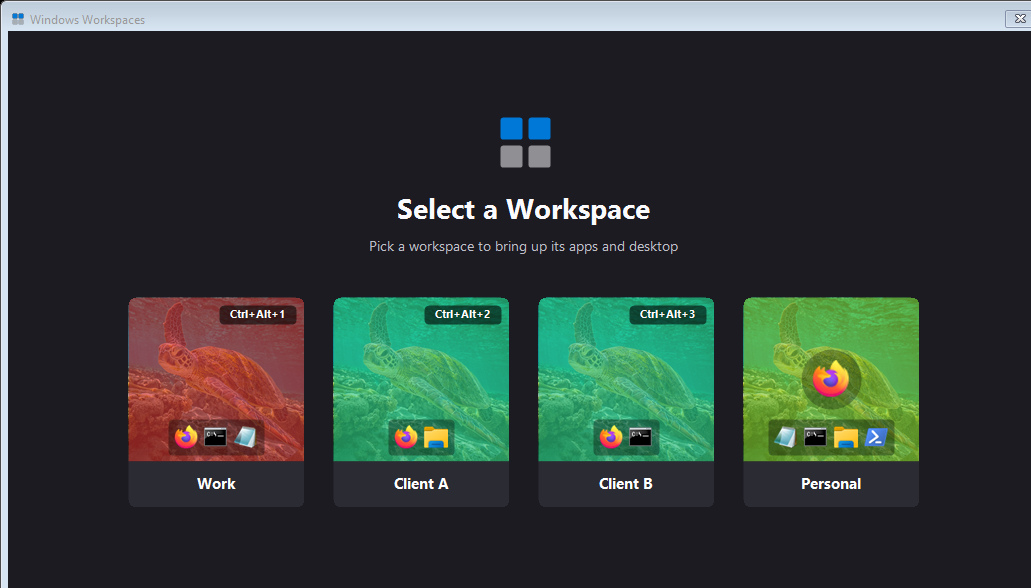
Regenerate the screenshot from the current template with scripts/capture-workspace-picker.sh (WSL host with Windows interop; light and dark variants).
| App key | Description |
|---|---|
command | Program to start: absolute Windows path or a name on the Windows PATH; %VAR% references are expanded |
args | Argument string passed to the program (also %VAR%-expanded) |
desktop | Virtual desktop key (see above) to place the window on, created if missing; undeclared keys display verbatim |
monitor | 1-based monitor number, numbered left to right; omit to leave the position alone |
maximize | Maximize the window (on its target monitor) |
keys | Keystrokes to send the window once the workspace lands, in .NET SendKeys syntax (e.g. ^+a for Ctrl+Shift+A); best-effort, see Sending keystrokes |
keys_delay | Milliseconds to wait before sending this app's keys, overriding windows_workspaces_keys_delay (default 1500); raise it for a slow-loading app |
window_match | Regex the placed window's title must match; only needed to disambiguate when one launch surfaces several of the app's windows at once (usually unnecessary) |
always_launch | Start the app even when an instance is already running; by default the launcher reuses a running instance instead of starting a second one (see below). Set for apps where each launch should open a fresh window |
Per workspace: name, apps, an optional title (the Start Menu shortcut's label, defaulting to name), an optional icon (the shortcut's icon: a path to an .ico/.exe/.dll, optionally path,index to pick an icon in a multi-icon file; %VAR% references are expanded; omit for the default monitor icon, shell32.dll,15), an optional cover (the picker tile's background: a path to an image, %VAR% expanded; overrides the desktop wallpaper the tile shows by default, so workspaces sharing a desktop can still look distinct), an optional color (a translucent tint over the picker tile's wallpaper: a #RRGGBB hex or a .NET color name; no tint is applied unless set), an optional hotkey (stored on the shortcut; Windows fires shortcut hotkeys globally for .lnk files on the Desktop or Start Menu), an optional desktop (the workspace's own desktop: the default for each app's desktop and, unless overridden, where the launcher lands), and an optional switch_to, the desktop to focus once everything is placed (only needed when it differs from the workspace desktop, e.g. a multi-desktop layout). A single-desktop workspace therefore needs desktop once:
windows_workspaces:
  - name: client-a
    title: Client A           # Start Menu shortcut label (default: the name)
    icon: '%USERPROFILE%\Pictures\Icons\client-a.ico'
    hotkey: CTRL+ALT+2
    desktop: ClientA          # placement default for the apps + landing spot
    apps:
      - command: '%LOCALAPPDATA%\slack\slack.exe'
        args: '--user-data-dir=%APPDATA%\SlackProfiles\client-a'
maximize: truewindows_workspaces: # default: []
- name: work
hotkey: CTRL+ALT+1
switch_to: Main
apps:
- command: wt.exe
desktop: Main
monitor: 1
maximize: true
- command: '%ProgramFiles%\Mozilla Firefox\firefox.exe'
args: '-new-window https://example.com -new-tab -url https://example.org'
desktop: Main
monitor: 2
maximize: trueThe launcher switches to the landing desktop first, before it starts anything, so each app's window opens directly on that desktop rather than flashing onto whichever desktop was active and getting stranded there if its move never lands. Apps bound to a different desktop than the landing one are moved there after they open.
The launcher places the window that appears when it starts an app, so it works even for apps that hand off to an already-running process: a browser launched with a shared profile opens its window in the existing instance, and that new window still lands on the configured desktop and monitor. To run a genuinely separate, isolated instance per workspace (own history, cookies, logins), give each its own profile the same way the Slack example does, for Firefox, args: '--profile %APPDATA%\FirefoxProfiles\<name> -new-window ...'. Distinct profiles run concurrently, so every workspace gets its own Firefox.
Launching a workspace is idempotent: for each app the launcher first checks whether that app's own instance is already up, and if so it just places that existing window rather than starting the app again. So relaunching a workspace whose apps are all already running brings their windows back to the configured desktops and monitors and switches you to the landing desktop, without opening anything twice. An app's keys are sent only on a fresh launch, not when an instance is reused. Set always_launch: true on an app that should open a new window every time (a fresh terminal, a scratch browser window).
Once the landing desktop is focused, the launcher raises each of that desktop's windows to the foreground and re-asserts maximize on the ones that set it. The second pass matters because an app that maximizes on launch can restore its own remembered size a moment later as it finishes starting up; maximizing again after it has settled keeps a maximize: true window reliably maximized.
The reuse check matches an app to its own running instance, not just any window of the same program, resolving identity in order of confidence:
argsfirst: when an app carriesargs, only a running instance launched with those same args qualifies, so an isolatedslack.exe(its own--user-data-dir) or a profiled browser is matched to its own window wherever it sits and never confused with a plain instance of the same executable.window_matchnext, as a last-resort fallback: a title regex, needed only to tell apart several windows of one executable that theargscannot separate.- Failing both, the target desktop: an app with neither a distinguishing
argsnor awindow_match(a bare IDE launched with no project, whose one process owns a window per open project across desktops) reuses a window only if it is already on the app's target desktop.
It never reaches onto another desktop to drag an unrelated window of the same executable in, so relaunching a workspace can't hijack an unrelated project window; if none is on the target desktop, the app just launches.
--profile "<dir>" also launches a profile you made by hand (its folder under …\Mozilla\Firefox\Profiles\), so you can reuse an existing profile instead of a fresh isolated one; quote the path if it has a space. Prefer --profile over -P <name>: -P only sees classic profiles.ini profiles, not ones created in the new "Choose a Firefox profile" UI, and you do not need -no-remote: Firefox 67+ runs distinct profiles concurrently, and -no-remote would break the URL hand-off the launcher and the Virtual Desktop Router rely on.
Removing a workspace from the list drops it from the config and removes its Start Menu shortcut on the next apply; clearing windows_workspaces removes the launcher, the config, the selector shortcut, and the then-empty Start Menu folder too (only files carrying the role's managed-by-Ansible marker are touched).
Sending keystrokes
Some apps open on a view you don't want and offer no launch flag to change it: Slack, for instance, reopens on the last channel with no argument for its All Unreads view. Give an app a keys string and the launcher replays it once the workspace has come up, so keys: "^+a" lands Slack on All Unreads (its Ctrl+Shift+A shortcut, which needs the All unreads section enabled in Slack's sidebar preferences):
- command: '%LOCALAPPDATA%\Microsoft\WindowsApps\slack.exe'
  args: '--user-data-dir=%APPDATA%\SlackProfiles\client-a'
  desktop: ClientA
  maximize: true
  keys: '^+a'          # Ctrl+Shift+A → All Unreads
  keys_delay: 2500     # optional; wait longer for a slow app to become interactive
The value is .NET SendKeys syntax (^ Ctrl, + Shift, % Alt, ~ Enter, {TAB}, ...). The keys go to the window after the workspace switches to its landing desktop, so they reach the foreground app; an app placed on a different desktop than the one the launcher lands on is skipped, since it isn't in front to receive them. Sending waits keys_delay first (per app, default windows_workspaces_keys_delay, 1500 ms) to let the window become interactive; raise it for a slow Electron app that would otherwise swallow the keys while still loading.
This is best-effort: it activates the target window (by process id, then SetForegroundWindow) and types into whatever is frontmost, so a modal stealing focus or a still-loading app can miss the input. It drives the app's own shortcuts rather than any supported automation API, so keep it to a short, idempotent chord, not a scripted sequence.
Electron / Chromium profile isolation (--user-data-dir)
Every Electron or Chromium app (Slack, Discord, Teams, Chrome, Edge, ...) accepts --user-data-dir, which gives each launch a fully separate profile (its own sign-in, cache, and settings) and defeats the usual single-instance handoff, so several independent instances can run at once. That flag is also the role's profile marker: an app carrying it becomes a named profile the Virtual Desktop Router can route links to. Point each instance at its own profile directory and desktop for one isolated Slack per virtual desktop:
windows_workspaces:
  - name: chat
    hotkey: CTRL+ALT+2
    apps:
      - command: '%LOCALAPPDATA%\slack\slack.exe'
        args: '--user-data-dir=%APPDATA%\SlackProfiles\client-a'
        desktop: ClientA
        maximize: true
      - command: '%LOCALAPPDATA%\slack\slack.exe'
        args: '--user-data-dir=%APPDATA%\SlackProfiles\client-b'
        desktop: ClientB
        maximize: true
Each Start-Process is tracked by its own process handle, so the launcher places each instance's window on its own desktop without title matching. Launch the exe directly (as above), not a launcher stub like Slack's Update.exe: a stub exits after handing off, which loses the handle (add window_match if you must go through one). An app installed from the Microsoft Store has no classic exe path; launch its app-execution alias instead (for Slack: %LOCALAPPDATA%\Microsoft\WindowsApps\slack.exe), which passes arguments through the same way. The picker draws the alias's app icon from the package exe the alias points at, and a bare name's from the exe found on the Windows PATH.
Performance tweaks
Two Windows tweaks that speed up WSL and Docker, both opt-in and off by default because they step outside the role's usual user scope.
Defender exclusions
Microsoft Defender scanning the virtual disk I/O of the WSL and Docker VMs is a common silent tax on file-heavy work (builds, git, npm). windows_defender_exclusions excludes the paths and processes you declare, adding only the ones missing so it reports changed only when it actually changed something:
windows_defender_exclusions:   # default: {}
  paths:
    - '%LOCALAPPDATA%\wsl'
    - '%LOCALAPPDATA%\Docker\wsl'
  processes: [vmmemWSL, vmmem]
Paths are %VAR%-expanded, so point them at wherever your distros' ext4.vhdx files live. Defender's cmdlets need administrator rights, so this is the one task that elevates: it raises a UAC consent dialog that blocks the apply until you accept it. Even reading the current exclusions needs elevation, so after a successful apply the role caches a fingerprint of the declared set in ~/.cache/dotpro/windows-defender.fingerprint. It only prompts again when that set changes; delete the file to force a re-apply. The task is skipped on a non-interactive run: windows_interactive defaults to interactive unless DOTPRO_NONINTERACTIVE=1 (set by install.sh, CI, and headless runs) marks the run unattended, and you can set it false to always skip. Tamper Protection can block Add-MpPreference; turn it off first if the exclusions don't take.
Power plan
WSL and Docker throughput track the active Windows power plan. windows_power_plan switches it, only when it isn't already active, no elevation and no prompt:
windows_power_plan: high # default: ""; also balanced, powersaver, or a scheme GUIDOn a laptop keep balanced for battery. The active plan is machine-wide, which is why it is opt-in.
Reclaiming disk from a bloated VHDX is handled on the Linux side: the wsl role ships sparseVhd = true so the disk shrinks as you delete data, and an older non-sparse VHDX can be compacted once with Optimize-VHD (Hyper-V) or diskpart after wsl --shutdown.
Troubleshooting
An app started but wasn't placed
The launcher waited windows_workspaces_window_timeout seconds without finding a window. This happens with apps that hand off to an already-running process or spawn their window from a different process than the one started. Add a window_match regex for the window title, and for single-instance apps close the running instance before launching the workspace (or use --user-data-dir isolation as above).
A workspace app failed to launch
A launch that throws (a wrong path or a missing executable) is written to %TEMP%\dotpro-workspace.log and the rest of the workspace still comes up: the shortcut runs hidden, so there is nowhere on screen to report the error. A single-instance app that hands its launch off to an already-running instance exits without a window of its own; the launcher notices and stops waiting for one instead of blocking until windows_workspaces_window_timeout elapses.
The hotkey does nothing
Shortcut hotkeys only fire for .lnk files on the Desktop or Start Menu, need Explorer running, and must not collide with a global hotkey another app already registered. Windows also registers them lazily: sign out and back in (or restart Explorer) after the first apply if the key stays dead.
Desktop tasks fail after a Windows feature update
The VirtualDesktop module broke against the new build. Run dotpro apply --upgrade to pull the updated module; if the Gallery has no fix yet, the pinned issue on the module's repository usually tracks the state.